
Quick answer: If one AirPod is not charging, check the left and right battery readings separately, reseat the affected earbud in its own slot, and try charging both earbuds in the closed case with a cable for at least 15 minutes. If the reading still does not rise, inspect for debris and follow the reset instructions for your model.
A full charging case does not prove that both earbuds are receiving power. The useful question is whether the affected AirPod is detected and whether its battery percentage increases. Work through one check at a time so you can tell which change helped.
Updated September 30, 2026: rewritten for clarity, with corrected charging and reset instructions checked against Apple Support. This is a documentation-based guide, not a report of hands-on testing.
Start with the symptom
Before changing settings, write down what you see. An earbud showing 0%, an earbud missing from the battery display, and an earbud with charge but no sound need different checks.
| What you observe | What to check first |
|---|---|
| One AirPod remains at 0% | Seating, visible debris, and a wired charging test. |
| One AirPod is missing from the display | Whether it is detected after normal removal and reinsertion. |
| Battery charge is shown but there is no sound | Audio and connection troubleshooting. |
| Charging starts and stops | Record the trigger and whether the reading rises while the case is stationary. |
1. Check each AirPod’s battery reading
Open the case near your paired iPhone or iPad and check each earbud. Record the left, right, and case percentages before testing. For example, “left 0%, right 86%, case 74%” is more useful than “the case is full.”
If the affected earbud already has charge but is silent, follow Apple’s left-or-right AirPod troubleshooting guide. That guide includes checking each earbud’s charge status and testing audio with the other earbud left in the closed case. Uneven sound may also require checking the audio balance setting.
If the case also makes sounds, see our guide to AirPods case beeping and green-light behaviour. Record the sound separately from the battery readings.
2. Reseat the affected earbud gently
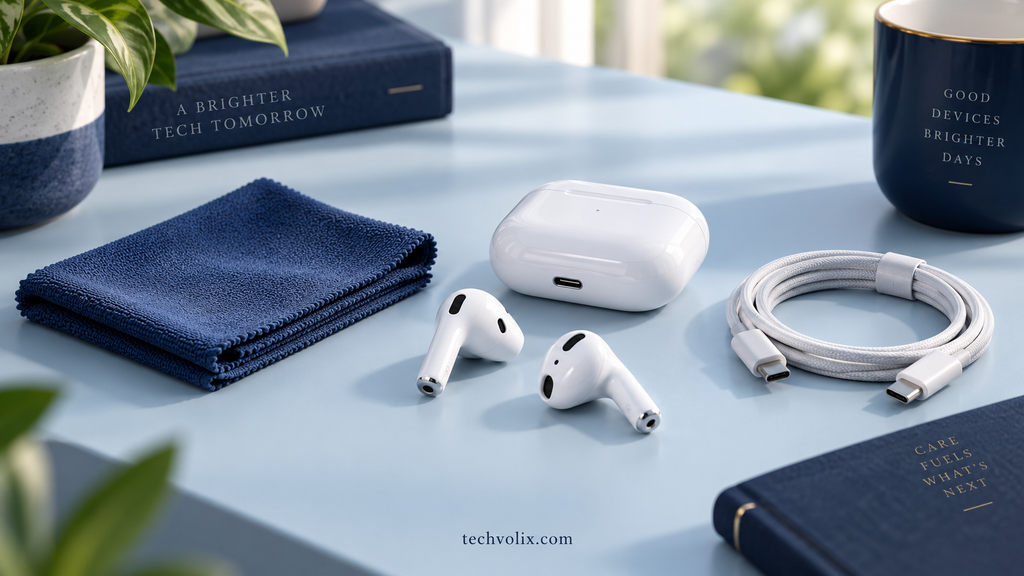
Remove the affected AirPod and put it back in its correct slot. Let it sit normally, then close and reopen the lid near your phone. Check whether it appears in the battery display and whether the charging indicator remains visible.
Do not force an earbud into the opposite slot, twist it against resistance, or hold it down with tape or paper. If normal reinsertion briefly restores charging but the problem returns, record that pattern for a service technician. It does not, by itself, identify which component has failed.
3. Try a wired charging test
Use the Lightning or USB-C cable appropriate for your case, a working power adapter, and a power outlet. Seat both earbuds, close the lid, and leave the case connected for at least 15 minutes, as described in Apple’s charging troubleshooting instructions.
If you normally use a wireless pad, a cable provides a useful comparison. Check that the connections are secure. When trying another accessory, change one item at a time instead of replacing the cable, adapter, and outlet together.
After the test, compare both battery readings with your notes. A rising percentage is useful evidence that charging occurred. A momentary charging symbol alone does not show how much energy the earbud received.
4. Inspect and clean carefully
Disconnect the case from power and inspect the earbuds and case in good light. Use a soft, dry, lint-free cloth for accessible surfaces. Do not insert sharp objects into the charging areas or let liquid enter the ports. Allow everything to dry before charging.
Follow Apple’s model-specific cleaning guidance, including its separate instructions for AirPods Pro. A technique intended for a speaker mesh should not be applied to charging contacts. If debris cannot be removed safely, get help instead of scraping the contacts.
5. Reset using the correct model instructions
If the earlier checks do not help, use Apple’s current AirPods reset guide. Resetting also clears custom settings. Identify your model first; the controls differ between cases.
Cases with a rear setup button
For AirPods 1, 2, or 3 and AirPods Pro 1 or 2: leave both earbuds in the closed case for 30 seconds. In the paired iPhone or iPad’s Bluetooth settings, forget the AirPods if listed. Open the lid and hold the rear setup button for about 15 seconds. Reconnect when the light flashes amber and then white.
Cases with the front double-tap reset sequence
For AirPods 4, AirPods 5, and AirPods Pro 3: first close the case for 30 seconds and forget the AirPods in Bluetooth settings if listed. Open the lid. Double-tap the case front while its light is on, again when it flashes white, and a third time when it flashes faster. Reconnect after the amber-then-white sequence. Consult Apple’s guide if the expected lights do not appear.
After reconnecting, repeat the battery check. A successful connection does not prove that a persistent charging fault has been fixed.
6. Check firmware after charging and connection work
Firmware updates arrive automatically under Apple’s required conditions. Keep the earbuds in their closed case, connect the case to power, and keep them within Bluetooth range of a paired, updated iPhone, iPad, or Mac connected to Wi-Fi for at least 30 minutes. Use Apple’s firmware page to check the current version and full instructions.
If the earbud cannot be detected or charged, do not treat an update as a guaranteed repair. Record that limitation when contacting support.
7. Arrange service if one AirPod still stays at 0%
If the same earbud remains at 0% after these checks, contact Apple Support or an Apple Authorized Service Provider. Ask for an assessment before buying a replacement earbud or case. The symptom alone does not establish which part needs replacing.
Prepare the model, affected side, before-and-after battery readings, and the checks you tried. Mention any recent drop, liquid exposure, or replacement component. If charging works only after reinsertion, explain exactly when it starts and stops.
Confirm that the improvement lasts
Once charging resumes, check the earbud during a normal use cycle and after returning it to the case. Keep the test simple. Repeated normal charging is more useful evidence than a single successful pairing message.
Frequently asked questions
Why is one AirPod not charging when the case is full?
The case and earbuds have separate batteries. A charged case does not confirm that an individual earbud is seated, detected, or receiving power. Start with that earbud’s reading and compare it after the charging test.
Is a left AirPod problem different from a right AirPod problem?
The same initial checks apply to either side. Note which earbud is affected and compare its behaviour with the working one.
Should I keep resetting an AirPod that stays at 0%?
A reset is one troubleshooting step. If the battery reading still does not rise after the charging checks and a model-appropriate reset, repeated resets provide little additional information. Arrange an assessment.
What if it charges but does not reach 100%?
A battery that rises and then pauses is a different symptom from one that never charges. Check any charging-limit or optimization message for your model before treating the two situations as the same fault.
For more troubleshooting articles, browse our Gadgets guides. To report a correction, use our Contact page and include the article URL and supporting details.

Leave a Reply