
You upload a photo, ask for a small change, and get a reply saying Gemini can’t edit images. Perhaps it offers to create a new picture instead. That’s frustrating when all you wanted was a different background or a blue shirt.
The message alone doesn’t tell you what went wrong. Before you rewrite your prompt ten times, work out whether the problem affects your account, the upload, or that particular request.
Quick answer: Check that your account can use image editing, then try one ordinary photo in a fresh chat with one clear instruction. If the upload fails, investigate the file. If you see a limit or access notice, follow that notice. If Gemini produces an image but changes too much, focus on the editing instructions.
This guide combines Google’s published requirements with practical diagnostic suggestions. The checks below are not claimed as fixes tested across every device or account.
Table of Contents
Find your symptom first
| What happens | What to check next |
|---|---|
| Gemini says it cannot edit images | Account eligibility, then a simple edit in a fresh chat |
| Your photo never finishes attaching | The file, upload connection, and any error notice |
| Gemini describes the photo but returns no edited image | Whether your instruction explicitly requests an edited image |
| It creates a different scene | A narrower request using one reference image |
| A limit or storage message appears | The specific limit named in that message |
| It works on your laptop but fails on your phone | Account selection, app version, and the mobile upload |
| Only one photo or request fails | That photo’s contents, file properties, and requested change |
Use this table to choose a starting point. A failed upload and an unwanted creative result need different responses.
Can Gemini edit uploaded images?
Yes. Google’s image generation and editing guidance describes editing uploaded photos and images created inside Gemini. It also lists eligibility requirements, including an age restriction: image editing is unavailable to users under 18. Availability depends on supported languages and countries, and school accounts can have additional restrictions.
That makes a blanket answer such as “Gemini cannot edit uploaded photos” misleading. The feature exists, but your account and request still need to qualify.
For troubleshooting, use the standalone Gemini app or website. An AI feature inside another Google product is not a reliable comparison unless its documentation explicitly supports the same editing task.
Why Gemini can’t edit images: common causes
Treat the refusal as a symptom rather than a diagnosis. Your next step should depend on what you can observe.
Did the image attach? Is there an account warning? Does the same request work with a different, harmless photo? Did you actually receive an image, but dislike the result?
Write down the exact response before changing anything. “Can’t edit,” “upload failed,” and “limit reached” may sound equally unhelpful, but each points towards a different investigation.
Avoid changing the account, file, browser, and prompt together. If the next attempt succeeds, you won’t know which change mattered. Start with the smallest useful test, then adjust one thing at a time.
1. Check the Google account you’re using
Look at the profile icon before doing anything more complicated. If you have personal and work accounts open, it’s easy to test the wrong one.
For a work or school account, ask your administrator whether your account has the relevant access. Google explains that Workspace feature availability depends on the licence. A colleague’s working account does not prove that yours has identical access.
Keep organisational files within the accounts and services your organisation permits. Testing a personal account, where appropriate, should involve your own non-sensitive sample image.
Don’t change your birthday or attempt to disguise your location to unlock a feature. If you encounter an eligibility restriction, browser maintenance will not resolve it. Confirm the requirement first so you don’t spend an afternoon troubleshooting something your current account cannot use.
2. Try one simple edit in a fresh chat
A clean test is more useful than arguing with the previous refusal.
Start a new chat and attach an ordinary image you own: a mug, a plant, or a notebook on a desk. Ask for one visible change. For example:
Edit the attached photo. Change the mug from white to blue. Keep the desk, background, lighting, and camera angle unchanged. Return the edited image.
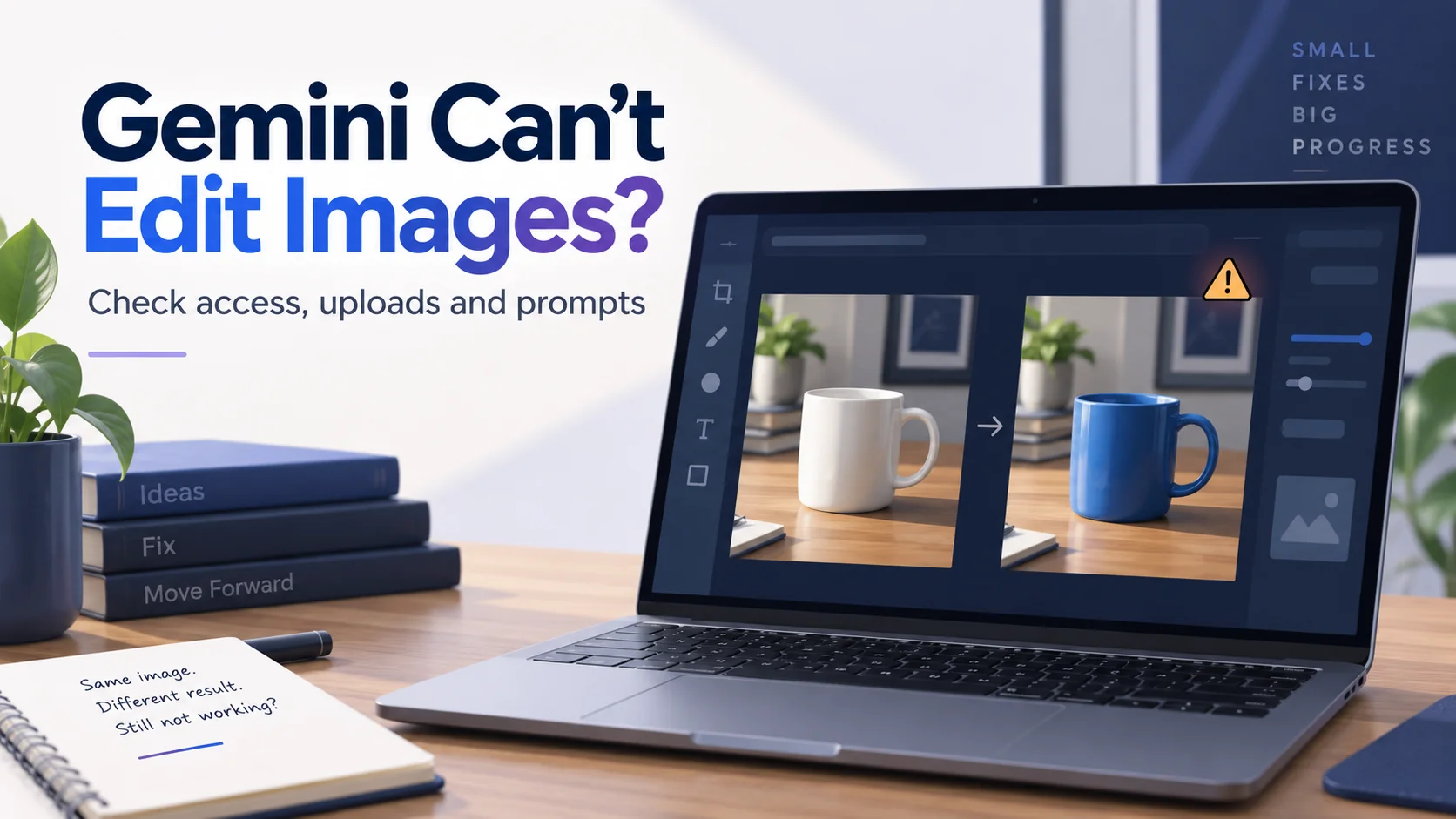
This is a diagnostic suggestion, not a special command that unlocks editing.
If it works, return to your original photo and request one change there. If the simple test fails too, save the response and continue with the account, upload, and browser checks.
A successful mug edit tells you that an editing request worked in that session. It does not prove that every type of photo or every proposed change will work.
3. Confirm that the image actually uploaded
Before submitting, check that the attachment is visible and no upload error remains. A prompt referring to “this picture” is not useful if the picture never attached.
Open the original image on your device. If it cannot open there, start with a fresh export from the original source. If it opens normally, try attaching it again.
Google’s file upload help recommends re-uploading when a file cannot be analysed correctly. It also describes separate file, storage, and usage limits.
As a practical test, use a smaller copy of the image and keep the original untouched. Export through an image application; simply renaming a file extension does not convert its contents.
For this test, attach one image only. If that succeeds, you can investigate whether the original file or the larger set of attachments was involved.
4. Make the requested change specific
“Make this better” leaves too much open to interpretation. You might mean brighter lighting; Gemini might reinterpret the entire scene.
A useful editing instruction identifies three things: the reference image, the change, and the details that should remain.
For a product photo, try:
Use the attached bag photo. Replace the background with a plain cream wall. Preserve the bag’s shape, colour, stitching, strap, and position.
For a room photo:
Edit this room photo by changing only the curtains to dark green. Keep the furniture, windows, wall colour, and viewpoint as they are.
These examples are original prompt suggestions. They are not guaranteed fixes.
If the result alters too much, reduce the request further. Separate a background change from a colour change, inspect the first result, and then decide whether to continue. This also makes it easier to identify the point where the output stops meeting your needs.
5. Separate a refusal from a poor edit
If Gemini returns a new image, your problem has moved beyond “no image output.” You now need to evaluate whether the edit is usable.
Compare the result with the original at a sensible viewing size. For a bag, check the strap attachment, buckle, seams, and silhouette. For a room, check straight edges, windows, and furniture positions.
Use a short acceptance checklist before the next attempt. For example: the bag must stay black, the handle must keep its shape, and only the background may change.
Then ask for the missed requirement directly. Avoid adding five unrelated improvements while correcting one mistake.
If exact preservation matters, use an editor that lets you select and modify a defined area manually. A precise product listing should not depend on accepting an attractive image that misrepresents the product.
6. Read limit and storage notices literally
A usage notice deserves a different response from a vague refusal. Google maintains a Gemini limits guide, and allowances can depend on your plan and feature.
If Gemini displays a reset time, use that information. Opening more chats is not a sensible response to an explicit account limit.
A storage warning is another case. Google’s upload documentation distinguishes Gemini activity storage from Google Drive storage. Don’t start deleting unrelated Drive files because an image upload fails.
Before removing any saved activity, preserve information you still need and read the warning carefully. Work or school users may need an administrator’s help.
Paying for a plan should follow a clear diagnosis. An upgrade is not evidence that an unrelated upload failure or refused request will disappear.
7. Compare the web and mobile versions
If Gemini image editing is not working on your phone, try the same sample image and instruction on Gemini’s website, using the same account.
Record whether the image attaches, whether a response arrives, and whether the response contains an edited image.
If the web version works, concentrate on the mobile setup. Close and reopen the app, check for an available update, and try the sample again. Also inspect whether the app has access to the particular photo you selected.
If both versions fail, that comparison is still useful. It makes a problem confined to one app installation less likely, although it does not identify the cause by itself.
Keep the prompt unchanged during this comparison. Otherwise, a different outcome could reflect your wording instead of the device.
8. Test the browser without resetting everything
For a web-only problem, save any unsent text and reload once. If the failure continues, try another updated browser with the same account and sample photo.
This is a troubleshooting comparison, not a confirmed Gemini-specific repair.
If one browser works consistently, look more closely at the failing browser’s configuration. You can test a fresh profile before clearing stored data from your everyday profile.
Avoid deleting all browsing data as your first move. Doing so can sign you out of unrelated services and remove useful local information.
Likewise, leave security protections enabled. There is no good reason to disable antivirus software or browser safety features just to test an image edit. A narrow, reversible comparison should come before disruptive changes.
9. Check whether the request itself is restricted
A request involving a real person or sensitive subject needs more care than changing the colour of a mug. Google’s editing guidance notes that policy checks may prevent image output.
If a harmless object edit succeeds but another request fails, examine the original request before changing your device settings again.
Describe the legitimate task plainly. Don’t hide the intent, invent permission, or look for words that supposedly bypass safeguards.
For an ordinary edit you believe was refused incorrectly, use the feedback option and explain the intended change. If you only need to crop, resize, or adjust brightness, a conventional photo editor may complete the job without another AI request.
Use a non-sensitive image while diagnosing the problem, especially if you expect to share a screenshot or submit feedback.
What if image editing worked yesterday?
First compare yesterday’s setup with today’s. Check the account, device, uploaded image, and visible notices before assuming the feature has been removed.
Try yesterday’s harmless request again if you still have the source image. Then try your new request separately.
If the old example works but the new one fails, investigate the differences between them. If neither works, record that finding rather than continuing to rewrite prompts.
Pause before another controlled attempt if you suspect a temporary problem. A later success may show that the failure was temporary, but it does not prove a particular outage occurred. Avoid describing a service-wide incident unless there is reliable evidence for it.
When Gemini still won’t edit your photo
At this stage, a clear report is more useful than another dozen random attempts.
Include the exact error, device, app or browser version, account type, approximate time, and whether the same test worked elsewhere. Add the prompt and a non-sensitive example when appropriate.
Google provides instructions for sending feedback or reporting a Gemini problem. Review what accompanies your report: associated conversation content can be included.
Keep the report brief enough to reproduce. “One mug photo, one colour change, same refusal on phone and web” is more useful than “everything is broken.”
If you need the image immediately, finish the essential change in a suitable photo editor. You can investigate Gemini separately without holding up your project.
Frequently asked questions
Why does Gemini say “Sorry, I can’t edit images for you yet”?
That wording does not identify a single cause. Check your account access, confirm that the image attached, and try one simple edit in a fresh chat. Follow any specific eligibility or limit notice before trying browser fixes.
Can Gemini edit photos for free?
Google documents image functionality for eligible accounts without a paid AI plan, alongside paid options and different allowances. Check the current feature requirements and limits for your account. Buying a subscription should not be your first troubleshooting step.
Why can Gemini describe my photo but not edit it?
Describing a photo and returning an edited image are different tasks. Ask explicitly for the change and an image result. If that fails, record the response and test a simple object photo before drawing conclusions about your original image.
Why does Gemini generate a different image instead?
Review how much interpretation your prompt allows. Identify the attached image as the reference, request one change, and name the details to preserve. If the output still changes essential features, use a more controlled editing workflow.
Will clearing the cache fix Gemini image editing?
There is no universal cache fix. First compare the same request in another updated browser. If the problem appears confined to one browser, investigate that browser before clearing data. Cache maintenance will not remove an account restriction.
What should I do if an upload says storage is full?
Identify which service’s storage the notice refers to. Gemini activity storage and Google Drive storage are separate in Google’s documentation. Read the linked upload guidance, preserve anything important, and involve your administrator for a managed account.
Should I keep retrying the same prompt?
After one clean repeat, change something meaningful or stop. Use a simpler photo, compare devices, or act on the error notice. Repeating an unchanged request without recording the outcome provides little useful information.
Is it safe to upload a private photo while troubleshooting?
Use a harmless sample instead. Review Google’s Gemini Apps Privacy Hub before uploading sensitive material. Consider whether faces, documents, addresses, or client information are necessary for the test; usually, they are not.
Start with the smallest useful check
If Gemini can’t edit images, begin with the account, attachment, and one simple instruction. Note the outcome before changing anything else.
A successful sample edit gives you a starting point for refining your real request. An explicit restriction tells you where to stop. A failure across devices gives you useful evidence for a report.
For more practical help with everyday technology, browse Tech Volix’s how-to guides.

[…] to change the picture itself after extracting its text? Our guide to Gemini image-editing problems covers that separate […]